
Remote Desktop
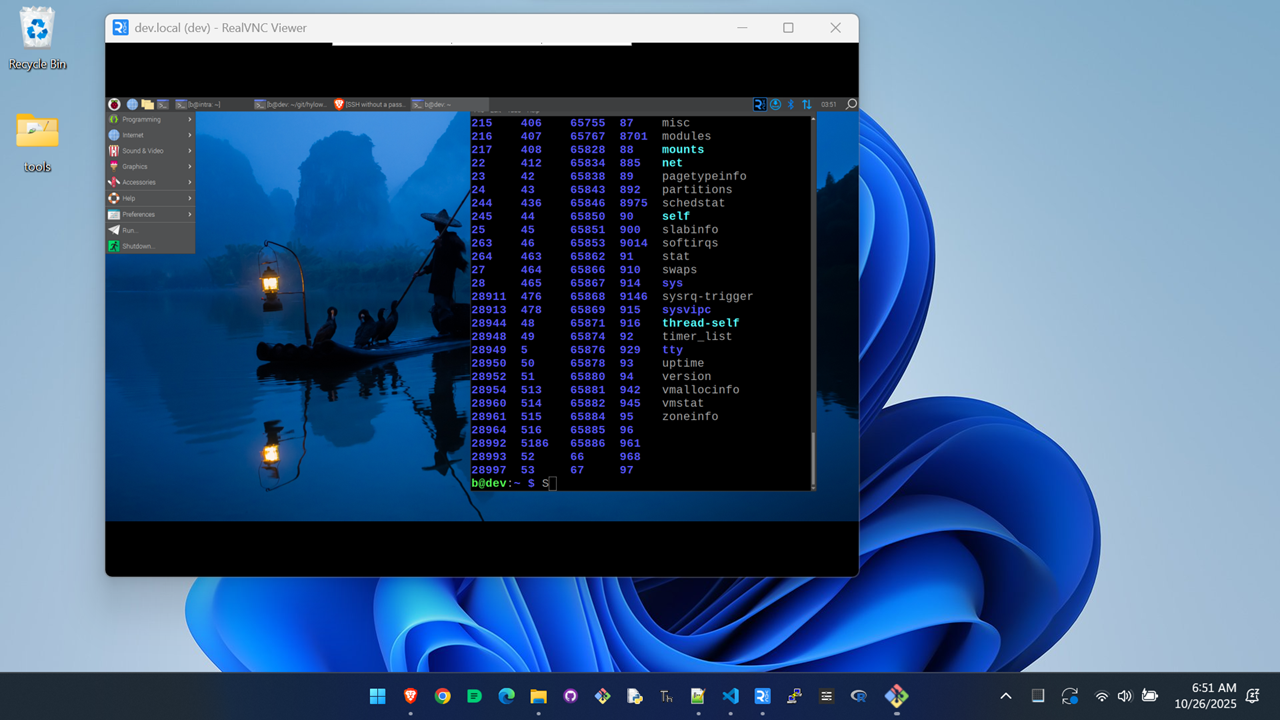
We use RealVNC.
Raspberry Pi OS has wayvnc running by default; need to stop it:
$ sudo systemctl stop wayvnc
$ sudo systemctl disable wayvnc
Enable VNC and use X11 instead of Wayland:
$ sudo raspi-config
>> Interface Options
>> VNC
>> Yes (to enable VNC)

>> Advanced Options
>> Wayland
>> X11 Openbox manager/backend
After installing RealVNC on another machine, e.g. a Windows laptop, you should now be able to make a remote desktop connection to the Raspberry Pi.
Note that you can also enable VNC from the desktop:
>> Raspberry Pi icon
>> Preferences
>> Raspberry Pi Configuration
>> Interfaces tab
>> VNC radio button
RAID
https://www.jeffgeerling.com/blog/2021/htgwa-create-raid-array-linux-mdadm
I followed this exactly, except a couple places to set up RAID 5 instead of RAID 0.
The main commands are:
$ sudo apt update
$ sudo apt install mdadm

$ lsblk # to view your drives

$ sudo mdadm --create --verbose /dev/md0 --level=5 --raid-devices=4 /dev/sda /dev/sdb /dev/sdc /dev/sdd

$ sudo mdadm --detail --scan --verbose | sudo tee -a /etc/mdadm/mdadm.conf

$ sudo mkfs.ext4 /dev/md0

$ sudo mkdir /mnt/raid5
$ sudo mount /dev/md0 /mnt/raid5
Python
As per the Raspberry Pi docs do not use pip to install python packages. use apt, e.g.
$ sudo apt install python3-build-hat
Can search for packages with apt-cache search "<keyword>", e.g.
$ apt-cache search "python3-flask"
The utilities pip and apt install packages system-wide (by default); the use of pip will not work in Raspberry Pi and will return an error message. Use pip in a python virtual environment:
# per-user environment
$ python -m venv ~/.env      # create the venv
$ source ~/.env/bin/activate # start using the venv
$ deactivate                 # to leave the venv

# per-project environment
$ python -m venv env         # do this in project root folder
$ source env/bin/activate    # start using the venv
$ deactivate                 # to leave the venv
Pass the --system-site-packages flag before the folder name to preload all of the currently installed packages in your system Python installation into the virtual environment.
Use pip list to view installed packages.
VScode
VScode runs slowly on Raspberry Pi for the same reason that Brave Browser and Chromium initially run slow – because they use hardware acceleration. In fact, VScode uses Chromium. Simply disable hardware acceleration and it will work fine.
In the file ~/.vscode/argv.json uncomment the line
"disable-hardware-acceleration": true,
and save. If this line is not there for some reason, add it to the end of the file before the closing curly brace, and make sure the line above it (i.e. the old last line) now ends in a comma ,.
If VScode was open/running, close it, restart it, and it should work good now.
Mkdocs
When cloning a mkdocs repository, don’t forget to not only install mkdocs but also install the theme, e.g.
$ pip install mkdocs-material
To suggest an edit or correction to this page, please click the "Edit this page" button below or at the top to access the source file on GitHub.